





Remember Me

Recent Uploads

Hot Downloads

Most Popular

Home Jeff's Blog 3ds Max 2009 (+Design) - Importons & Irradiance Particles
3ds Max 2009 (+Design) - Importons & Irradiance Particles PDF Print E-mail
Written by Jeff Patton   
Monday, 21 April 2008 06:42

If you already have (or will soon have) access to 3ds Max 2009 and/or 3ds Max Design 2009 then you're going to want to head over to the Maya forum to get the new ctrl.ghost shader. Many, many thanks to Max (not the program...but the man) for creating/sharing these shaders (including a 3ds Max version) that allows us to use the new Importons & irradiance particles.

Here's a direct link to the thread where you'll find the shaders (32 & 64 bit) & more information HERE

Now with the 3ds Max package you'll also get the mrGeomShaderObject.dlo file, place this in your plugins or stdplugs folder. Thanks to Dave (maxplugins.de) for compiling the geometry shader. The Geometry Shader will be our access point to the importons & irradiance particles options.

The zip archive also contains the ctrl_ghost_settings shaders. You'll find both a .dll file & .mi file. Place the ctrl_ghost_settings.dll file in the shaders_autoload subfolder: ex. C:|3ds Max 2009|mental ray|shaders_autoload|shaders

Then place the ctrl_ghost_settings.mi file in your include folder: ex. C:|3ds Max 2009|mental ray|shaders_autoload|include

Now you're all set to start using these new options. To access the settings you'll first create a mr Shader object in your scene then assign the ctrl_ghost shader to it and drag that ctrl_ghost shader to the material editor as an instance copy then edit the settings from the material editor. Not clear enough, here's some screen captures:
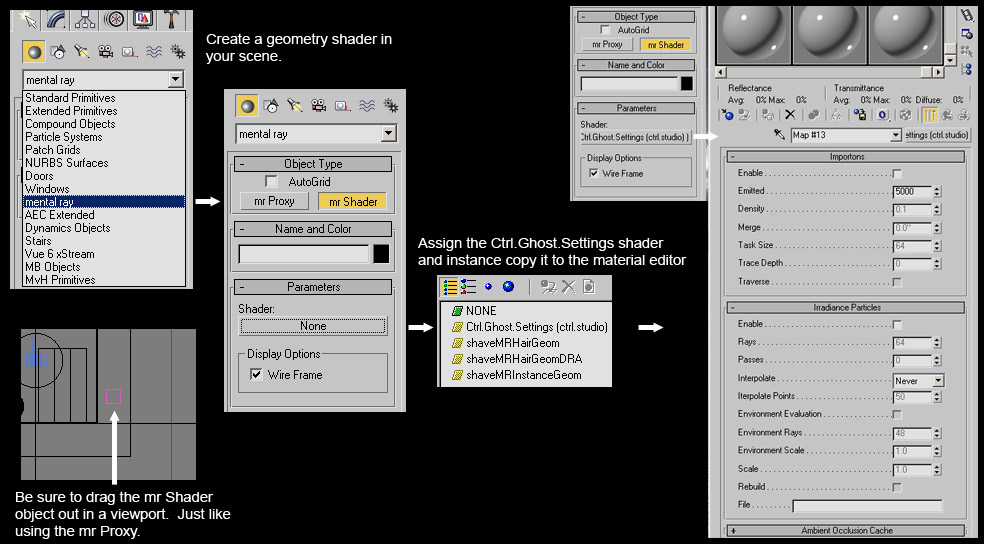
ctrl_ghost-thb.jpg
You can find more information on these options in the thread listed at the beginning of this entry, and in the mental ray documentation included with 3ds Max. To access the mental ray documentation, go to: Help>Additional help...>mental ray 3.6 Reference


Blog entries may be discussed in the 3DA forums HERE
Trackback(0)
Comments (7)Add comments
Paulo Barrelas wrote on June 22, 2008
 
Title: ...
Hey Jeff, thanks for sharing this info! I'm already doing experiments with these new features!!
report abuse
vote down
vote up

Votes: +1
farins wrote on July 21, 2008
 
Title: wow
hey, very thank you!!! also for image example for intall it smilies/cheesy.gif
report abuse
vote down
vote up

Votes: +0
Tim Wetzel wrote on July 25, 2008
 
Title: ...
Is there any way we could get a walk through of how to use the actual setup? I tried throwing it together and wasn't getting anything to work correctly. Would be appreciated.
report abuse
vote down
vote up

Votes: -1
Jeff Patton wrote on July 31, 2008
 
Title: ...
Hi Tim,
Take a look at Paulo Barrelas blog entry here: http://mrmaterials.com/index.p...&Itemid=92

Let me know if that doesn't help and I'll plan a future blog entry on this.
report abuse
vote down
vote up

Votes: +0
Tim Wetzel wrote on July 31, 2008
 
Title: ...
I tried to follow that discussion, but I must be putting things in the wrong places or something, because all my renders looked exactly the same and had terrible shadows.
report abuse
vote down
vote up

Votes: +0
Paulo Barrelas wrote on August 01, 2008
 
Title: ...
Tim, try this: change your renderer back to scanline and back again to MR. Sometimes Max don't use MR even though it's default renderer. Look that MR turns FG on by default and if you want to use only Importons+IP you must turn FG off.
report abuse
vote down
vote up

Votes: +0
Chris Robinson wrote on May 07, 2009
 
Title: ...
Is this available for 2010 yet?
report abuse
vote down
vote up

Votes: +0

Write comment
You must be logged in to post a comment. Please register if you do not have an account yet.

busy