







Remember Me

Recent Uploads

Hot Downloads

Most Popular

Home Jeff's Blog Quick note on gamma issue (dark textures)
Quick note on gamma issue (dark textures) PDF Print E-mail
Written by Jeff Patton   
Sunday, 27 July 2008 00:00
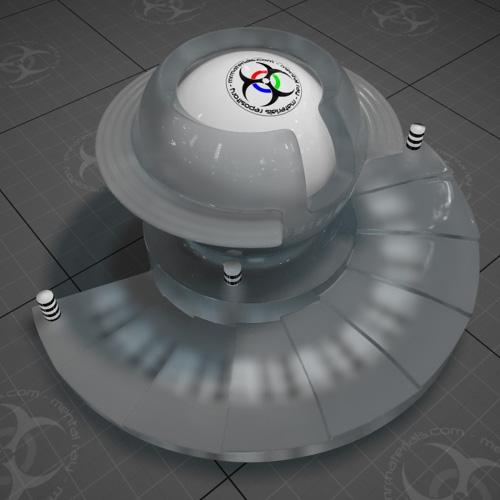
I wanted to take a few minutes to explain the current gamma setup of the 3ds Max matlab scenes, and what to do if your output doesn't look similar to the default render that comes with the scenes.
Current setup:
When you unpack the matlab scenes you'll find a simple document included that explains a bit about the various gamma options. The scenes are currently configured for option B, because I felt that it had the most benefits. This doesn't mean it's the best work flow or the one that you should immediately switch to. It's merely my opinion, nothing more, nothing less! Don't read into it any further than that.

In the gamma document included with the 3ds Max Matlab's, I've even gone the extra step to explain my thought process on this tough decision and the pro's and con's of each method that I weighed out to come to my conclusion. I did this so you could make an informed decision as to which gamma method works best for you.

Overly dark texture:
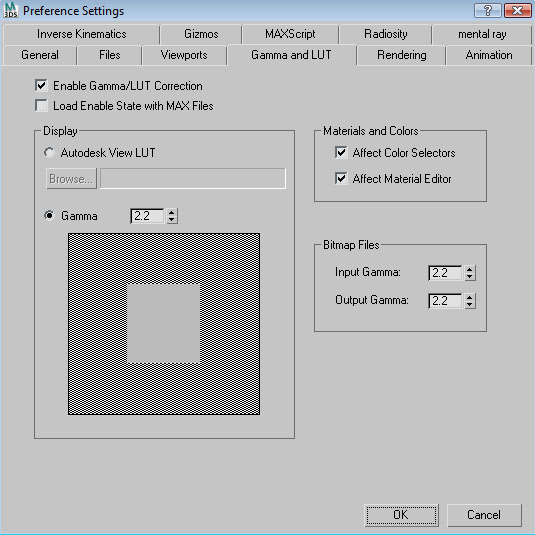
The most common issue that people will encounter is if you're using a gamma setting of 2.2 for your Bitmap input setting as illustrated in the following screen capture:

(click image to enlarge)

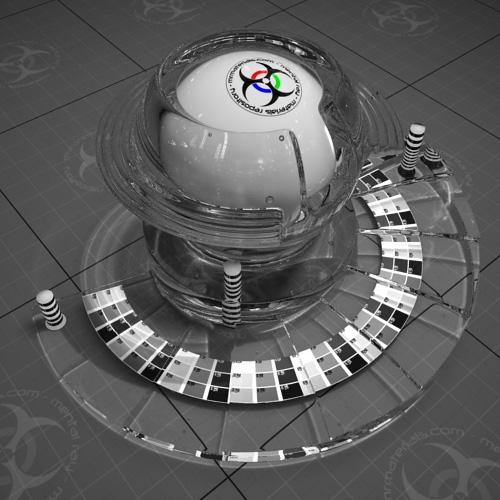
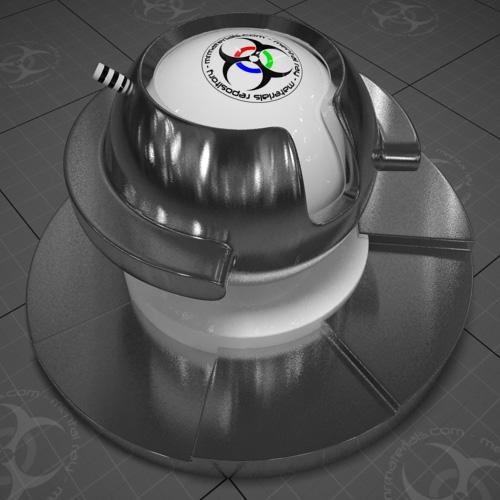
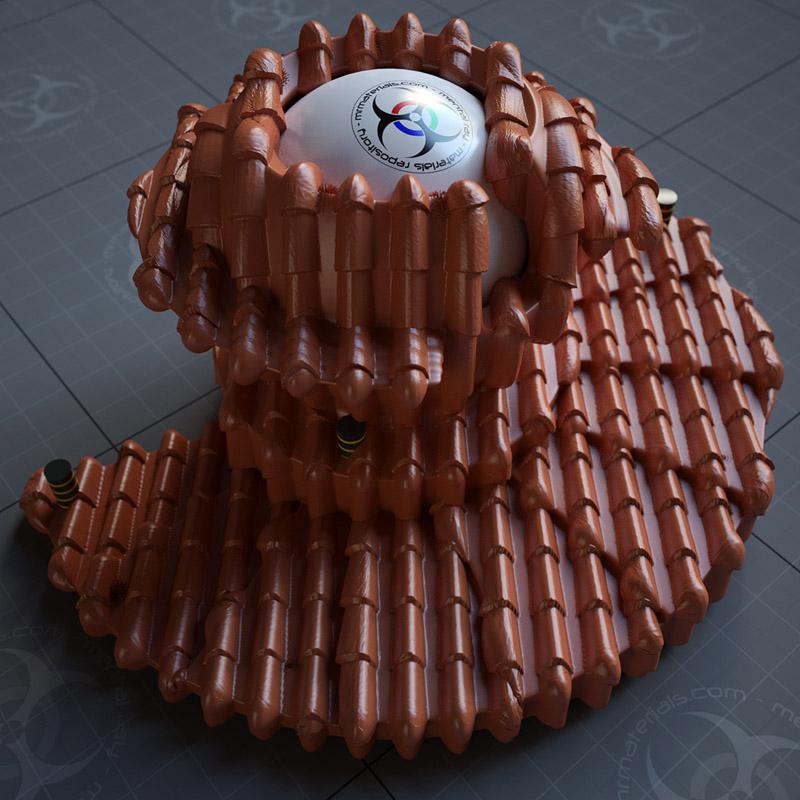
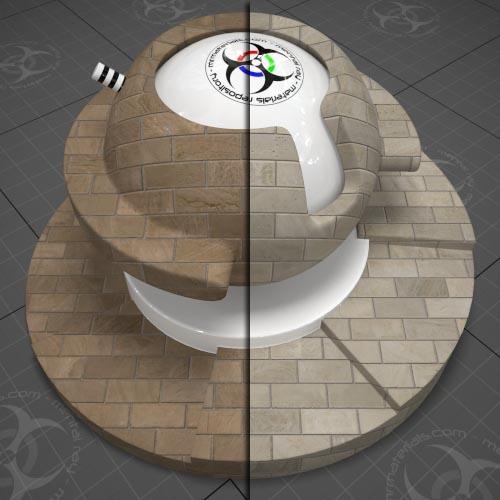
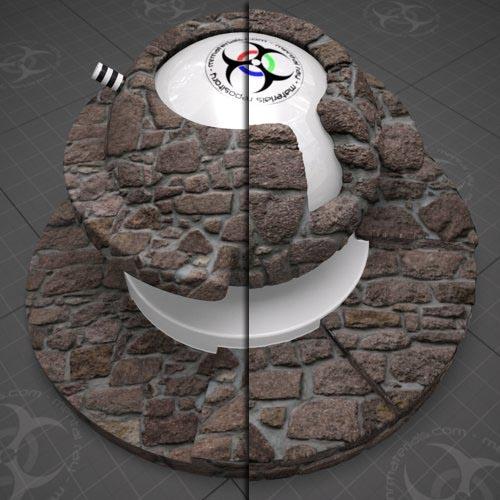
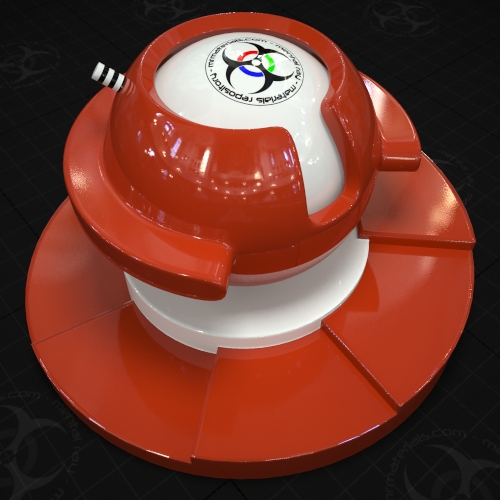
If you're using this particular setup then the matlab textures will render overly dark, like this:

(click image to enlarge)

How do you resolve this issue?
It's rather simple actually. Since I'm using a bitmap input gamma of 1.0 I locally control the gamma of my textures by wrapping them inside the gamma/gain utility shader, shown below:

(click image to enlarge)
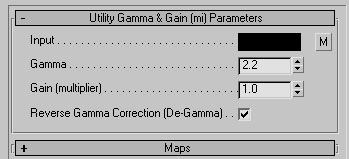

If you're using an input gamma of anything higher than 1.0 then you'll need to adjust the scene a bit to get the correct results. The three areas you need to adjust are the floor grid material, the white sphere material, and the environment.

You'll want to load these three materials into the material editor and then either change the gamma setting on the gamma&gain utility shaders to 1.0, or you could remove the gamma&gain shader all together and just apply the maps as you normally would.

A word of caution: The .hdr we used in this scene has a baked in gamma curve (2.2). So while floating point images such as .hdr/.exr's would normally be loaded into 3ds Max in a linear format (gamma 1.0), you'll need to load this particular .hdr in at gamma 2.2. Although I personally prefer 1.8 for this particular .hdr.

If this doesn't help explain the gamma/texture issues let me know and I'll upload a short video to help clarify these issues.

Thanks for your support!
Trackback(0)
Comments (11)Add comments
Dan Cocker wrote on July 28, 2008
 
Title: ...
I had this issue, and as it was the first time with Mental Ray it did throw me a little. Thanks Jeff.
report abuse
vote down
vote up

Votes: -1
Scott wrote on July 28, 2008
 
Title: ...
I too was a little confused, totally because gamma stuff is new to me (if I rendered it and it looked good, so be it) But I read the included file and all is well now. For me, when opening the bitmap I change the gamma in the open dialog, but what I'd really like to know is how to save it out of PS so it comes in at 2.2 without touching anything.
report abuse
vote down
vote up

Votes: +0
Jeff Patton wrote on July 28, 2008
 
Title: ...
Scott, I'd say most of what you save out of Photoshop will be gamma 2.2 (sRGB) by default.

Therefore, in 3ds Max if you set the bitmap gamma input to 2.2 then you won't have to mess with the import options, until you need to import something linear (gamma 1.0), like bump maps, displacement maps, or floating point formats (.hdr/.exr).

Just be aware of the pro's & con's of this as I mentioned in the gamma document included with the matlabs.
report abuse
vote down
vote up

Votes: +0
Scott wrote on July 28, 2008
 
Title: ...
Thanks for your reply. I think I got confused because I set Max up for g2.2 for everything, then when I rendered my material in the matlab scene, the floor was very dark. So I set the Bitmap import to g1.0 and that fixed the floor, but then my material was too light. So when opening the bitmap I set it to 2.2 and all went well.. anyways I'm sure you can tell I'm still a little confused smilies/smiley.gif It's working none the less.
report abuse
vote down
vote up

Votes: +0
ex Cathedra wrote on July 29, 2008
 
Title: ...
Thank you Jeff.
report abuse
vote down
vote up

Votes: +0
Ata Ul Munim Sipra wrote on August 22, 2008
 
Title: ...
Thank you very much for your kind information. I seek a lot from this method and got excellent results. Thanks again.
report abuse
vote down
vote up

Votes: +0
Josh Purple wrote on August 23, 2008
 
Title: ...
Excellent info, Thank You for your time and help! I appreciate it! smilies/grin.gif
report abuse
vote down
vote up

Votes: +0
Godslove wrote on August 26, 2008
 
Title: ...
Wow all of this is good information to know, but I'm still a little confused on how the matlabs is affected, & I'm totally lost when your talking about importing something linear. I guess the video would help me to better understand because I am just getting into Gamma issues. Either way, I'm thankful for all that you do.
report abuse
vote down
vote up

Votes: +0
Godslove wrote on August 26, 2008
 
Title: ...
Ok, I was slightly confused in reading through this; however, after watching the video it is a lot clearer. However I'm left with one question that puzzles me, what is the ultimate purpose of the Gamma setting to start with? Is it due to the color variations of monitors or something else?
report abuse
vote down
vote up

Votes: +0
Jeff Patton wrote on August 26, 2008
 
Title: ...
Yes. Here's an excerpt about gamma from the 3ds Max help file: "Gamma correction compensates for the differences in color display on different output devices so that images look the same when viewed on different monitors.

A gamma value of 1 corresponds to an "ideal" monitor; that is, one that has a perfectly linear progression from white through gray to black.

However, the ideal display device doesn't exist. Computer monitors are "nonlinear" devices. The higher the gamma value is set, the greater the degree of nonlinearity. The standard gamma value for NTSC video is 2.2. For computer monitors, gamma values in the range of 1.5 to 2.0 are common."


There's more information in the help file that is worth the read.

Another place to watch for useful gamma information will be this site by my friend Zap:
http://www.lysator.liu.se/~zap/lwf/
report abuse
vote down
vote up

Votes: -1
johan belmans wrote on November 09, 2008
 
Title: ...
Hi all,

I am using the above description on gamma in my workflow. But it is a hassle to replace all my bitmaps with the gamma/gain utility shader. So I am looking for a script which will replace, in an old scene or material library, in the difuse and reflective slot the bitmap shader with the gamma/gain utility shader and copies in this last shader the previous bitmap shader.
Hope I make myself clear :-)

cheers

report abuse
vote down
vote up

Votes: +0

Write comment
smaller | bigger

security image
Write the displayed characters


busy